
The Add / Edit Page Screen is virtually identical to the Add/Edit Post Screen in terms of functionality. There are a few differences to note however:
Distinguishing Body Text on Pages and Posts
Using the WYSIWYG Editor on the Add / Edit Page screen, you can add text to the top of your pages. However, posts (when they are called to a page by page-post association or other means) will generally appear BELOW this body text on the page. You will not see this in the WYSIWYG Editor for the page (though the feature may be controlled by a special field installed on the Add / Edit Page underneath the WYSIWYG Editor. Always remember that text you enter in the WYSIWYG Editor on the Add / Edit Page screen will be reflected as “body text” at the top of the page you are creating. Adding text into the WYSIWYG Editor of the Add / Edit Post screen will be reflected in the posts associated with that page. Although a subtle difference in language, it is a big difference in how your website works. Always remember: Pages display posts (and maybe some body text at the top); Posts display moveable content on the site.
There are instances where content is controlled more by page body text than by posts, in which case you might be working with more pages than posts. This will depend on the construction of your website and how your content needs are built into the system. Please review your client portal documentation for more information about that aspect of your particular website.
Page Attributes
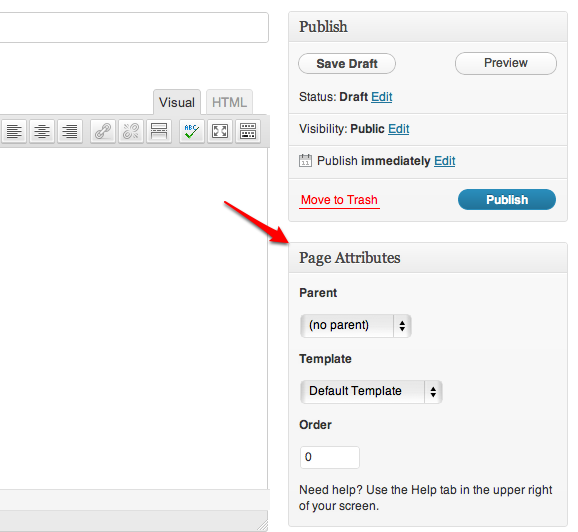
In place of categories, an Add / Edit Page Screen has a “Page Attributes” section (see below). This is the area where you identify if the page is a top level (no parent) page or if the page should be considered by WordPress to be a “child” of another page in the navigation hierarchy. (Note: Setting pages as parents and children does not by itself impact the menu format on your website. The Menu item under “Appearance” in the left sidebar does this.) It can be important for permalink structure to set these parent / child relationships correctly and whether this functionality is needed will vary from website to website. Please consult your client portal documentation for this information.
Additionally, another page attribute is the template the page uses. There are often multiple templates to choose from when creating / editing a page and these templates may have certain features on one which aren’t on another. Each website’s templates will be unique and your client portal documentation will include information about the templates and their unique functions. Generally speaking, when creating a new page, you would use the “Default Template.”
The Order feature is another way to manage menu navigation and hierarchy, if enabled to do so. Whether your menus are controlled in this way will be indicated in your client portal documentation.
Featured Images on Pages
Featured images on pages follow the same process for adding / removing as on the Add / Edit Post Screen. However the function of featured images for pages may be different. Sometimes pages have a featured image that displays at the top of the screen at a fixed width and height (an image often called a “topper”). Or the featured image might be used on a page as the photo to display on the home page slider, for example. Your client portal documentation will contain the specifics of how featured images on pages are used on your website.
Special Fields
Underneath the WYSIWYG Editor on the Add / Edit Page Screen, there may be a number of specialized fields which further delineate the functionalty of pages. One common additional field is called “Associate Posts” which provides the end user with ability to set which posts will pull to a page based on their category. This is a commonly used plugin to allow the end-user that ability to assign posts to pages with ease and thereby use the key function of WordPress posts to its utmost. However, other fields might also control if the page appears on the home page slider, or other features as well. Consult your client portal documentation for the ways in which special fiends on the Add / Edit Page Screen is used on your website.

