
The “Add New Post” screen can be accessed from the “Posts” sidebar menu or from the top of any post screen in which you are editing a post. “Edit Post” is the same screen except for a post which has already been created previously. It can be accessed from the post listing in the All Posts lists, and selecting the title or the “Edit” option underneath the title on the All Posts page. The Add/Edit Post page looks something like this.

Title
The title for your post is entered in the field at the top where the large text appears in this image. Any text can be entered as a title and will appear on your website as the title for the post.
Permalinks
Underneath the title is the Permalink. The Permalink is an automatic feature built into WordPress which assigns a link to your new post based on settings that have been established and are normally stored in the Settings / Permalinks section.
Note: The Settings / Permalinks area settings should not be altered except by experienced developers. Doing so may break you website.
A common way this is setup is as follows: http://thesiteyouown.com/top-level-subpage-name/post-associated-with-top-level-subpage-name.
This URL example represents the top level of your domain, a page on the domain, and then the post associated with the page.
Another example of this might be: http://thesiteyouown.com/postid/post-name where “postid” is a specialized identifier WordPress creates for posts and the name is the title of the post.
There are several variants on these, but the goal with the permalink is two-fold:
- To create the link by which you can directly link people to a specific place on your website
- To maintain a site infrastructure of pages and posts that makes logical sense and which follows a clear pattern
Permalinks can be manually altered by clicking the “Edit Permalink” button and either manually updating the text in there and selecting OK and/or cutting and pasting text (such as from the title field) into the permalink field. Note that the permalink field does not display punctuation marks or special characters, only numbers and letters. This is intentional as those characters are not allowed in website URLs. WordPress automatically edits out any of these characters when a permalink is edited.
The only time you as an end-user should edit the permalink is to correct inconsistencies with regard to the title. An example would be if the title had a typo which got transitioned to the permalink or the title of the post changes at a later time. It is inadvisable to randomly change the permalink as it could cause inconsistencies in URLs on the website. We are always happy to discuss larger changes to permalink structures with you if needed.
Uploading / Adding Media
Underneath the permalink edit area is a button called “Add Media” and it is what you press when you want to add a photo, PDF, or other media file to your website. This provides access to a media upload window and/or the Gallery of media files already saved to your WordPress site. (See the Media page for discussion of this feature in more detail.)
This is where you can find a link to a PDF, insert a photo or an audio/video file into your post and, in that process, set parameters for how photos appear (justification) or what they link to.
WYSIWYG Text Editor
One of the most prominent and recognizable feature of the page is the WYSIWYG Text Editor. WYSIWYG stands for “What You See Is What You Get,” and is meant to convey the fact that you can format the text in the text editor to look the way you want it to on your website when you publish the post. In point of fact, however, the WYSIWYG Text Editor often does NOT show you exactly what you will see on the front-end of your website when you publish a post. Instead, it allows you to set prearranged styles that will correspond to settings established in your WordPress website build which are built in (such as the style and size of headings, the size of regular paragraph text, the color of links, etc.) but none of these will usually appear in the WYSIWYG itself. However, once you are familiar with all the styles of the website and features of the editor it will become clear how these settings match up with how things appear on the website.
The WYSIWYG Editor has several features that are important:
Icon Bar
There is an icon pallette with items similar to types of icons you would see in Microsoft Office or similar desktop publishing software and several icons unique to WordPress. Here is an image and indicator of most of the icon pallette features. Following is also a description of some of the unique icons that may not be as familiar.
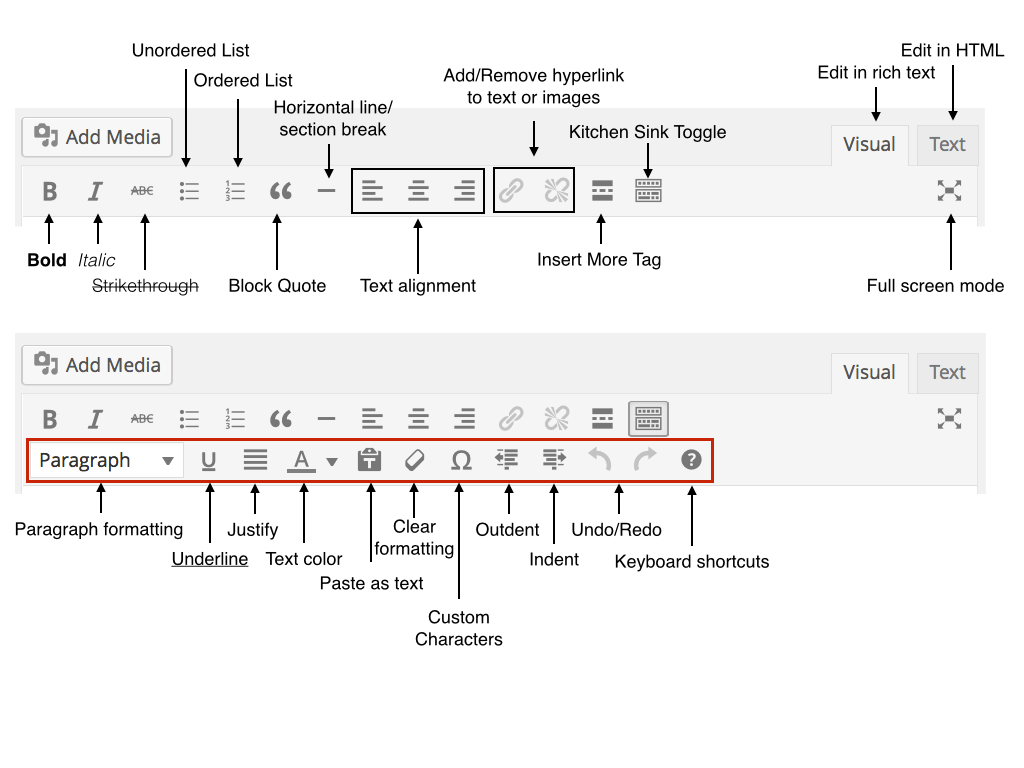
Blockquote
This allows you to set a block of text off from the main paragraph style using a blockquote style. This only works well if that style has been defined as part of your WordPress website build. Otherwise, it may look odd or distorted.
Hyperlink / Break Link Icons:
The hyperlink icon allows you to bring up the hyperlink editor when you have highlighted text in the post to set it as a live link to either another page or post on your own website or to another website. When you cursor in or highlight text that is already hyperlinked, the Break Link icon also becomes available and pressing it removes the hyperlink there.
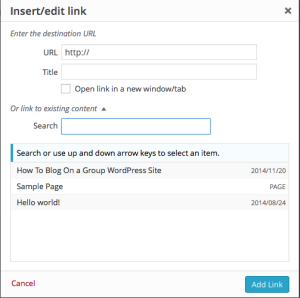 The hyperlink assignment box looks like this and has several key features. You enter the URL to which you are linking in the URL box. The “Title” field can include plain-English text that briefly notes what the link is to. This will appear as a bubble popup on hover in some browsers. The “Open in a new window/tab” checkbox option should be checked to have the link open in a new tab when the URL links to a page that is not on your website. It should be set to off (unchecked) when linking to another page on your own site. (This is a standard best practice in websites today.)
The “or link to existing content” area allows you to search pages and posts on your site to quickly select them and pre-populate the URL and Title areas with the appropriate content. You can use this when linking within your site.
Insert More Tag
The Insert More Tag is a feature enabled in some websites to place a bit of code inside your post to identify it to WordPress as a break point for an excerpt. (Words before the Insert More code would appear as an excerpt on a page with a link to the entire post.) Words after the Insert More Code would not appear in this excerpt. Note: This feature is NOT enabled for use on all websites. If it is, your client portal will contain that information.
Show/Hide Kitchen Sink
This icon simply toggles whether you can see the next row of icons in the icon pallette. Its default is set to off, so if you don’t seem those icons and you want to, select this key.
Theme Options Special Icon
Certain plugins and themes may have additional, specific icons that are added to the icon bar. These will be unique to your WordPress installation. It might refer to special aspects of the theme that can be set from the Add/Edit Post page. It always appears to the right of the Show/Hide Kitchen Sink icon. Please refer to your client portal documentation for specific examples related to your website.
Visual / HTML Tabs
These tabs toggle between the text-editor visual view and the HTML code view (the code that websites read to construct pages properly). People who are inexperienced with HTML should always make sure they are in the VISUAL view. Experienced HTML coders can manipulate items in the WYSIWYG Editor using the HTML view when needed. If you see a lot of <> code items with strange text strings in them that you don’t understand, you are probably in the HTML view and should switch to Visual to edit your post.
Styles Drop Down Selector
Also above you can see (designated by the word “Paragraph”) the drop down list of styles programmed into your website. Styles include “paragraph,” “address,” “preformatted,” and Headings 1-6. These styles are pre-programmed into your website and assigned to various styles indicated here. Recall, though, that they do not DISPLAY here as they will be seen on the front-end, but can be SELECTED here to tell the front-end of the sit what to display. To apply a style to text in a post, simply highlight the text you want to assign a style to and select it from this menu.
Paste as Plain Text / Paste from Word / Remove Formatting
Often when copying and pasting from a desktop publishing software like Microsoft Word or from another website, there is unseen code in the text of a Word document that the WordPress WYSIWYG editor cannot render properly. Thus, if you simply cut and paste from a Word document into the WYSIWYG editor you will probably import a number of these styles unknowingly and this can cause formatting errors on the website and in the editor itself.
It would be best to either transfer the text to a basic text editor (such as Notepad) first or use the “Paste as Plain Text” option so that all of the formatting of the text is stripped out and just the raw text is put into the WYSIWYG so it can be properly formatted using the Style Drop Down. “Paste from Word” ideally is supposed to allow you to paste from a Word document directly to the WYSIWYG, and it has improved overtime. However, if you can, pasting plain text is always the better option when cutting and pasting.
Note: We do always encourage you to compose your text outside of WordPress (e.g. in Notepad) simply because if the internet crashes while you are working on a detailed composition, it might be lost.
You can always get info about what an icon does by hovering over it with your mouse cursor and see the bubble that pops up for an explanation. You will also see quick text shortcuts for different icon functions in the hover bubble.
Publish Field
This is the field you use when you are saving a post or preparing to publish it to your site, or update one that has been previously published. When fully expanded it looks like this. It is always located in the upper right of the Add/Edit Post Screen.

There are several features in this box that are helpful in preparing to publish or updates posts.
Save as Draft: Before you publish a post for the first time, you can save your work and return to it later by clicking this button
(Note: WordPress does auto-save, but like it is always best to manually save as you go to make sure the right edits are maintained!).
Preview Changes: After a post has been published for the first time, but before you publish changes, you can use this button to view what the page on the front end will look like after you publish the changes.
Status: Identifies if the post is Published, Pending Review, or Draft. Note that you can set the post to any of these statuses by choosing from the drop down. Pending Review is a way to place a post in holding for another person (usually a site administrator) to approve it. This feature is often used by those with a User Role lower than Administrator on the site. (See page on Users for more information.) You do not need to manually change this setting to Published when you first Publish a post. Clicking the Publish button will do that for you.
Note: Resetting a published post to Draft does not necessarily hide it from access even though it removes it from the front end of the site. That is because the permalink is still active and anyone with the permalink can still access the post.
Visibility: Controls how your post is seen on the front end. It can be set to Public, Password Protected, or Private.
- Public means everyone can see it.
- Password Protected provides you with an option to set a SINGLE password that anyone who wants to access the page will need in order to get in. (This option is useful if a group of people will need to access the information on the page and they all can be trusted not to share the password with others – e.g. a board, staff, etc.)
- Note: This password protection is NOT the same as a username and password login for a WordPress site, which is controlled under the Users left sidebar menu item.
- Private means that only the author, an editor, or an administrator on the site can see the site. (This method could be used as an alternate form of “Pending” to allow for post review before revealing it to the public.)
Published on: This indicates the time and date that WordPress reads the post as having been created and published on the site. If this feature is not specifically set when a new post is published, WordPress uses the timestamp settings for the exact moment of posting as the date and time and fills those in. (Note: Accuracy in this field requires that the correct time zone and time is listed in the Settings / General section of the left sidebar menu.)
For both new and previously published posts this datea and time can be adjusted to any date or time in the past or future. Setting a post to a specific time in the past may be helpful to date items on the site that are date sensitive, such as a press release. Alternately, some post orders on a page are controlled by the time and date of posting (often with the most recent post showing first on the list). Thus, it may become necessary to manipulate the “Published on” time to a specific date and time in order to get it to appear in the order you want on a page full of posts. (Generally, for posts that are not controlled by post date, but instead by title or event date, custom post types are created which do not follow the published date in determining their order. Any information on custom post types for your website will be explained in the client portal. When a “Published on” date is set to a time in the future, it means the post will be scheduled to appear on that site at the specific date and time noted. This can be useful for publishing embargoed news / information at a time that a person might not be available to post manually.
Move to Trash / Publish / Update / Schedule Area: This area allows you to move the entire post to the trash area or to publish, update, or schedule a post. The button title that appears in this space corresponds to settings established in the Publish field and/or if the post is new or previously published.
Categories / Tags
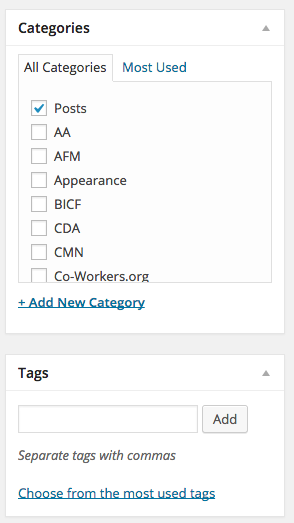 Categories are a way of designating posts in particular groups that often are used by WordPress to determine which page they are associated with. This is an important feature of the post publishing process as a lack of assigned categories (or misapplied ones) can cause:
- Your post to appear on the website in places you don’t want it to
- (In places where pages and post names are part of the permalink structure) could cause mis-match of posts to page
- The creation of orphan posts (posts not assigned to any category or “Uncategorized”).
Generally speaking, you always want to assign a post to at least one category.
Most often, categories are used to tell WordPress which page on the website you want the item to appear. The fact that you can choose more than one means that the post can appear in multiple places (pages) at the same time, thus skipping the need to duplicate information. It is one of the most versatile aspects of WordPress. Categories are also used on blog pages in websites indicating specific sub-areas of interest that may have a relationship to the post. Often, categories can have sub-categories which relate to pages and sub-pages on a website.
The categories for your website’s posts have often been established from the beginning, but new categories can be added as the need arises. However, before adding categories you should consult with Perisphere Media and consider the hierarchy of relationships between posts and pages that you hope to establish by creating new posts.
Categories can be toggled between an “All view” and “Most used” view in this field, which may be helpful if you only use a handful of categories frequently in a long list of them.
Often category construction is unique to each website. Information about your website’s post categories can be found in your client portal documentation.
Tags are another way of identifying posts with specific “metadata” that can be useful for search engine indexing, and/or internal searches on your website. They are often one or two word phrases separated by commas, which identify specific or general areas of interest on your website as they apply to the post you are composing. You can use multiple tags in a post to increase searches hits and to show multiple relationships between posts that may not be in the same category. Again, you have the option of choosing from most used tags so that you don’t have to type in the same tags repeatedly.
Tags are less vital to most websites than categories, and so tags can often be left incomplete, but, if there is a special function for them on your website, this will be noted in your client portal documentation.
Featured Image
The Featured Image field is a special field that allows you to assign an image stored in your media library to a post so that the image displays in certain circumstances when the post is excerpted on the website somewhere. Featured image dimensions are often customized to the area in which they will appear on the website at a certain pixel width by a certain pixel height (e.g. 650 (w) by 300 (h), which would often be written as 650 x 300). Pictures that are not of this exact width and height (or exact multiples of percentage of the exact width and height) may not show up correctly when used in featured image, so it is important that the image in the Media Library being used as a featured image be properly scaled before it is uploaded to ensure the best presentation of the image in the space allotted. The dimensions are fixed and cannot be changed. When you select “Use Featured Image,” the Media Upload / Select window appears. It will look something like this.
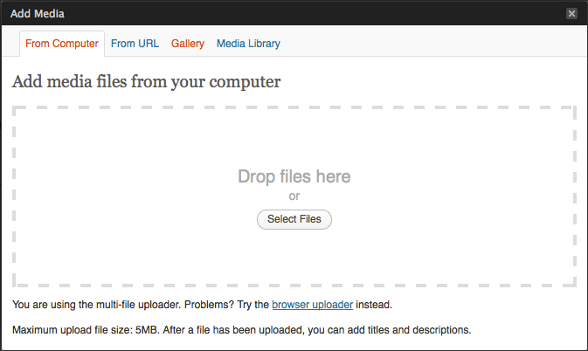
You have the option of uploading a new file from your computer, selecting an external URL on which the image is hosted (not recommended, because if the external link changes, your image link in the post will break), or choosing an already uploaded image in the Media Library. (Gallery is an example of a media library plugin that we’re not covering here.) For uploading a file see the Media page.
When you upload or select the image to insert as a featured image, click on the “Show” link next to its name and thumbnail in the list and scroll to the bottom of the image description. You will see a button that says “Insert into image,” a link which says “Use as featured image,” and a link which says “Delete.” Choose the “Use as featured image” link and the image will be inserted into the Featured Image field on the Add / Edit Post Screen and will be inserted as a featured image at the full size of the image.
Select “Done” or the “x” in the upper right of the media selector window to close it. Then proceed to edit your post as needed. When you publish or update your post, the featured image will be attached to it.
Special / Custom Fields
Underneath the WYSIWYG Text Editor can be any number of special fields related to posts that can be customized. These are usually either WordPress theme dependent or customized for your website. Information about these special fields is included in your client portal information. Special fields can also appear in the Add/Edit Post Screen sidebar, underneath the standard posts (usually beginning underneath “Featured Image”).

