
The Media Library main screen can be accessed from the left sidebar menu and selecting either “Media” or the “Media Library” sublevel under it. When you go to this page it will look something like this.
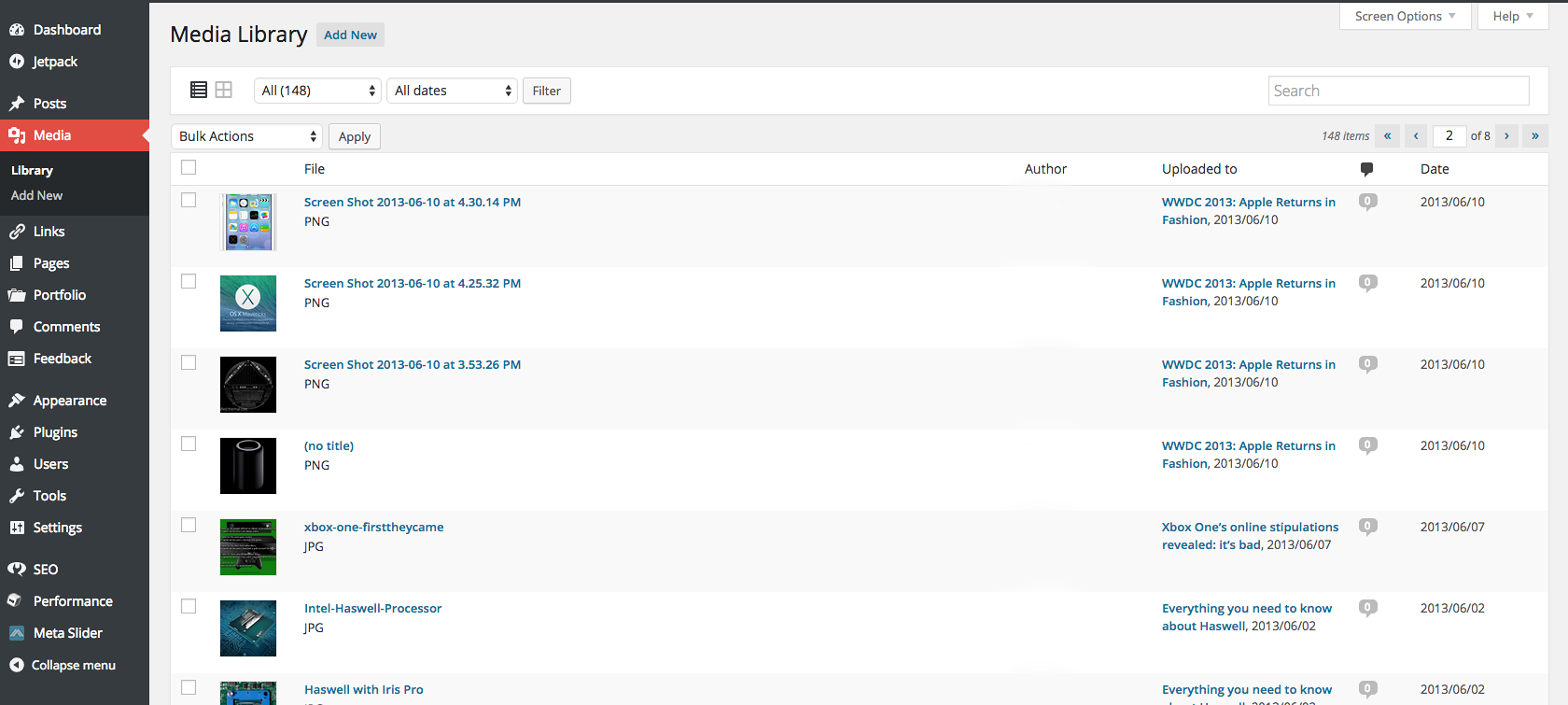 On some installations, pictures are organized in a grid format with thumbnails of each picture. These two ways of viewing the media library can be toggled from the buttons on the icon bar.
There are several features which allow you to manipulate the view of the information you see on this screen and some options for looking at individual items in the library.
Working With Multiple Media Items
The media library view can be divided according to the types of files listed in the drop down menus just below the main “Media Library” title at the top of the page. Generally the options there are “All” (to view everything in the library) and “Images” (to view only photos and images stored in your library). The “Unattached” option shows items in your media library which are presently not being used in a post or page on your website.
As on the All Posts or All Pages view, you can use the drop down menus immediately below the context menu on the Media Library page to perform bulk actions on a number of media files at the same time, such as deleting multiple images or assigning multiple images to a post. Note that several media items must be selected by checkmark to the left of the item in the Media Library list in order for this function to work when the “Apply” button is pressed. There may be other functions that you can perform in this area, depending on any special scripts or plugins being used as well.
To the far right of the bulk actions menu area is a list of the pages showing how many pages of media items there are in the library. You can scroll through or select which pages to look at as needed.
In the list itself, you can select “File,” “Author,” or “Date” (and when available “Attached to”) to sort items in the library by those parameters.
Working with Individual Media Files
In the Media Library you can hover your mouse over the title of the media file to see a context menu with several choices. From this menu you can “Edit” the image (bring up the edit page), you can delete the image (cannot be undone, as there is no intermediate “Trash” for the images to go into), View the image in a sized-down version of a page on the front-end of the website, or Attach it to a post. Clicking on the name of the file also brings up the “Edit Media” page.
On the Edit screen (see below for an example), you have the option of editing properties such as Title of the image in the library (which might appear when someone hovers over the image with their mouse in some browsers), alternate text that would appear if a browser’s view images feature was disabled, a caption for the image (generally not used except in contexts of posts or pages), and an internal description of the item for administrators on the website. The file URL is also located here, which is often needed when linking to non-picture media items such as PDFs. You can always get the exact URL you need for such links from the Edit page. Clicking “Update” after making changes on this screen saves those changes.
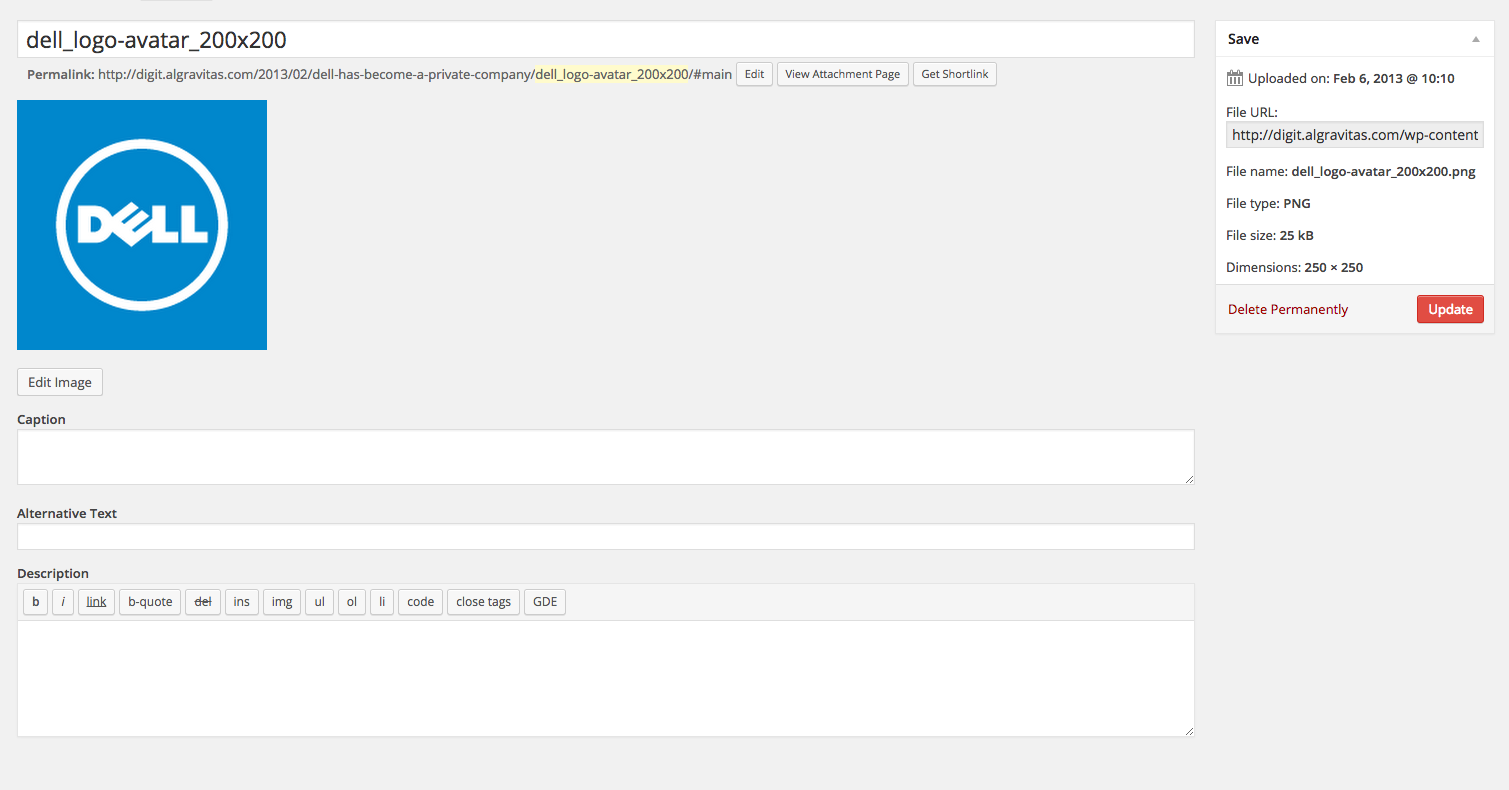
In new installations of WordPress, you can also edit the image itself by clicking on the “edit image” button below the thumbnail. Here you can change the resolution (if the picture is too large), rotate or flip the picture, and change the aspect ratio if the image looks stretched or compressed. In most cases, you will not have to change these properties, and this should be left to the administrator unless you know how to manipulate images. Your edits cannot be undone once they are saved.


