
Menus are a key feature of your website which helps people navigate around the pages and posts in a logical way. It helps identify for the person using the website the information architecture and allows them to find what they are looking for easily.
While pages can be identified as “children” of a “parent” page (see Add / Edit Page Screen for more info on that), this setup does not establish a “menu” on the website for the pages. That must be done from the Menu screen, which can be accessed under the Appearance left sidebar menu item. The Menus Screen looks something like this:
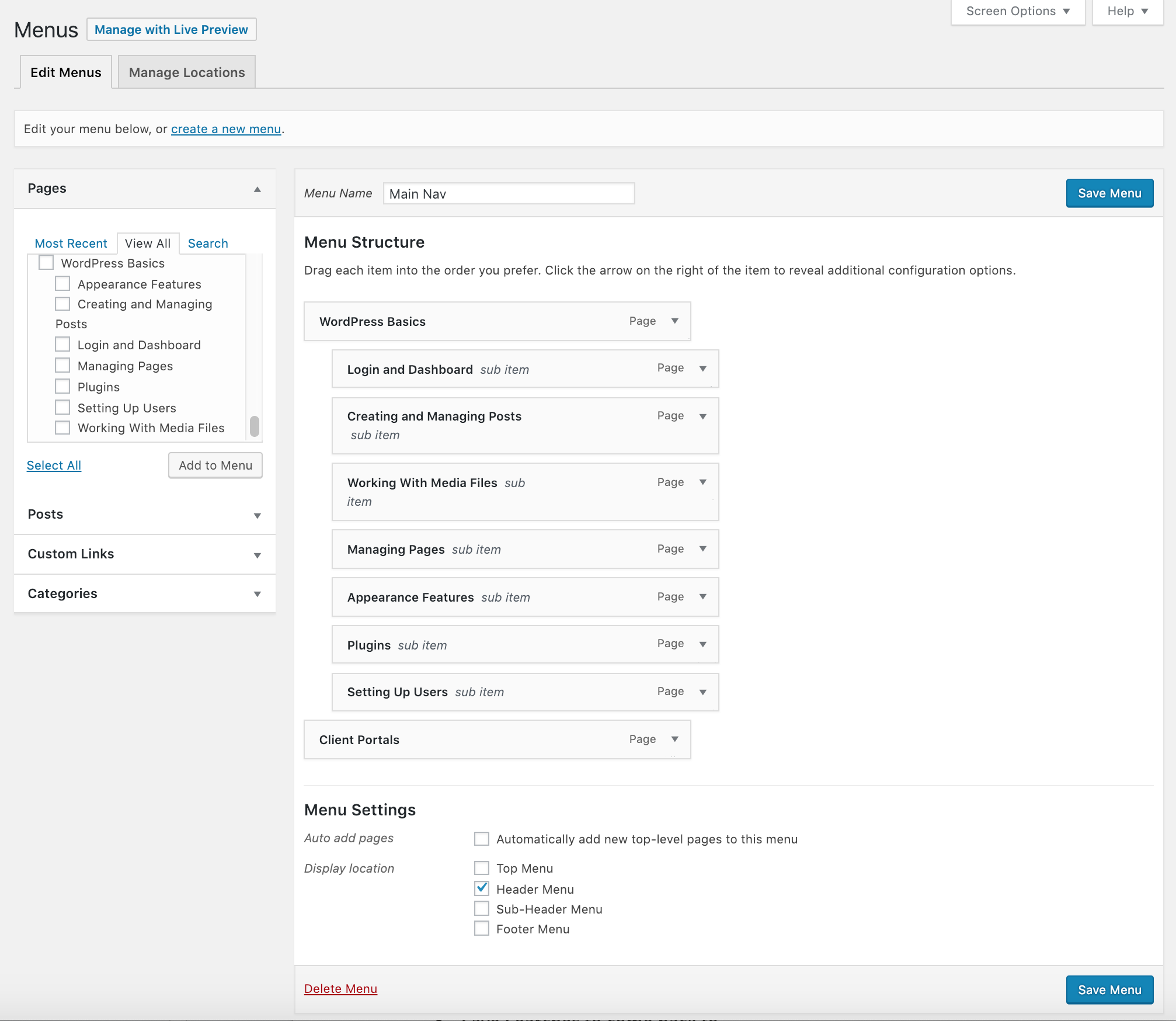
The Menus Screen consists of five areas that help you set up the menus on your site. Often it is preconfigured for you by Perisphere Media, but changes can be made to menus in a straightforward way when needed.
Theme Locations
Found under the Manage Location tab at the top. This area is preset with the theme of your WordPress website and identifies where different menus are accessed within your website (for example, the main navigation area underneath the header, a utility navigation above the header, a footer menu, etc.). Each of these areas can have a different menu depending on the need of your website.
Menu Setup
The menu setup area is the largest area of this screen and has tabs that help you access and work with the menus that are set up on your site. Although there is an option to “automatically add new top-level pages” in this area, we recommend this be left unchecked and that you update menus manually when needed (creating / deleting pages, etc.) Each menu item can be expanded to get more information about its name in the actual menu and whether the link should open in a new tab. This is done using the drop down arrow on each menu item. The menu items themselves can be dragged and dropped in the order you want them to appear. They can be “indented” to designate sub-menus under certain pages. This is where the menu version of child / parent pages is set up for actual website navigation. When your changes are complete, selecting “Save Menu” saves your changes.
Custom Links
Custom links allow you to create menu items that don’t point to pages or categories on your own site (see below) but may instead point to specific posts or to external websites. Once you complete the information in this section and select “Add to Menu” it becomes a menu item which can be manipulated as all the other menu items. (Note: When creating an external link on a menu, it is a best practice to make sure it opens in a new tab.)
Pages & Categories
These two areas include all the existing pages and post categories from your website. They can be added to the menus and setup as menu items easily. For categories, these menu items will produce the equivalent of a category search page (available as a widget option as well).

