
The Add / Edit User Screen appears when you click on “Add New” under users or “Edit” under an existing user in your Users List page. It looks something like this:
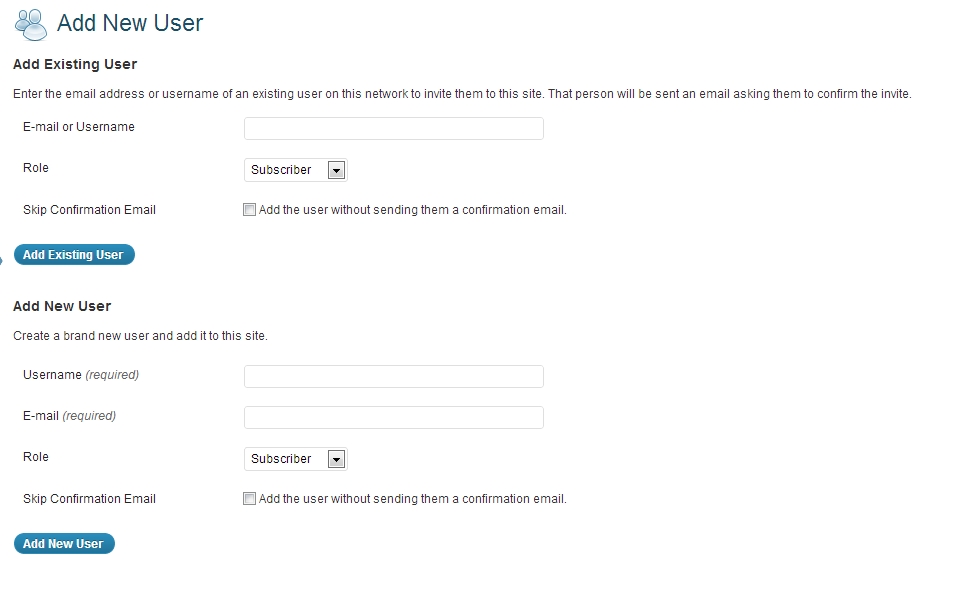
As you can see, there are two ways to add a user. The “Add Existing User” is usually a feature only accessible Super Admins and will generally not be one you have the option to choose unless you are a Super Admin.
The most common way to add a user is through the “Add New User” option. You need to provide a username for the new user (generally a best practice is first initial and last name together as one word), a unique email address for that user, and the setting up of their role. The system will send them a confirmation email with their assigned username and a link for first login, along with a temporary password. This password, once used, must be changed after first login. Selecting the “Skip Confirmation Email” does not send the user a message like this and will instead only inform the Adminsitrator / Super Admin that a user has been added and provide them with the temporary password. Generally, this option is left unchecked as it is good for users to set up their own accounts as a general rule.

